
Users
- Administrator
Manage Users (under Settings) lists everyone who can sign in to RevColl or the handheld: administrators, supervisors, auditors and marshals.
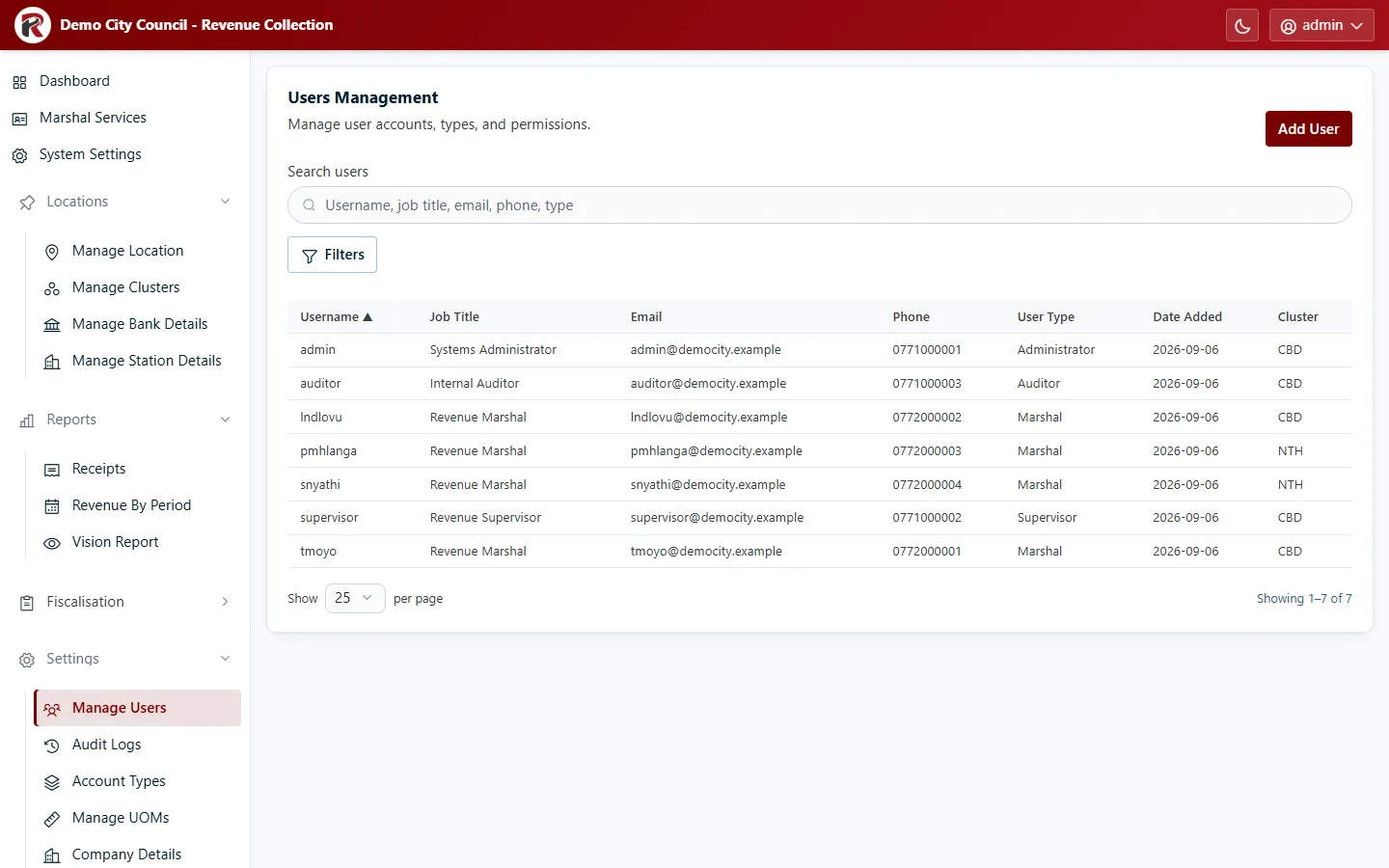
Search by name or username. Filters narrows by User Type and Cluster.
Add a user
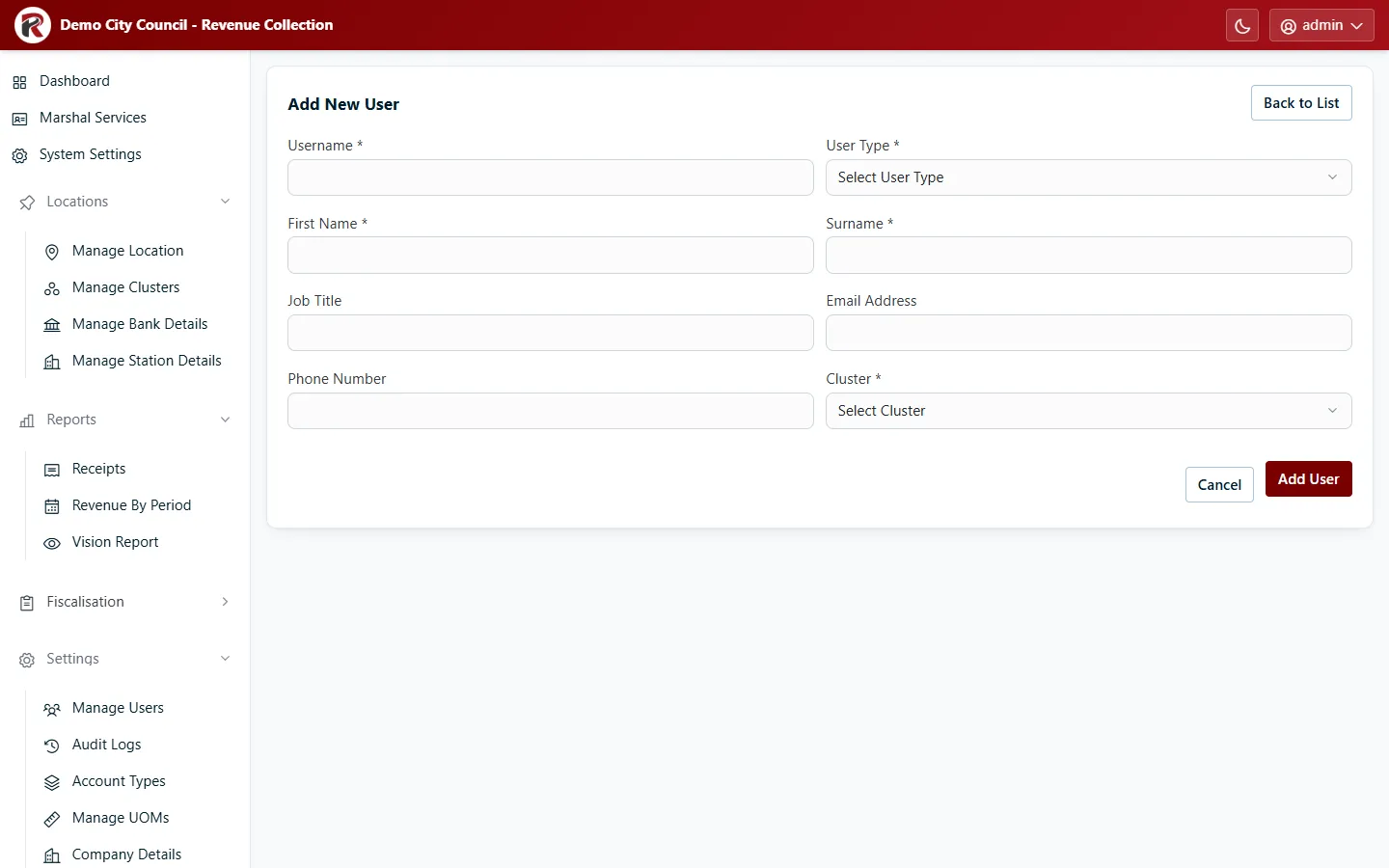
Section titled “Add a user”- Select Add User.
- Enter the Username (it must be unique and can’t be reused), First Name, Surname, and the User Type (role). See Roles and access.
- Add the Job Title, Email Address and Phone Number if you have them.
- Choose the user’s Cluster. It’s required when your council uses clusters. For a marshal, the cluster decides where their collections are reported.
- Tick any extra permissions the user needs: Manage Advanced Shifts, Run Retroactive Missing Taxes Routine, Manage Products, Assign Products to Marshalls.
- Select Add User.
RevColl then shows a one-time setup code. Give it to the user with their username and the RevColl address: they sign in with the code as their password, then choose their own password (Signing in). The code works once, expires after 72 hours, and is shown only once. If it’s lost, use Reset Password to issue a new one.
Manage Users marks accounts that haven’t finished setting up: Awaiting first sign-in, Setup code expired, or Needs a password reset (the account has no code and can’t sign in until you reset it).
Change a user
Section titled “Change a user”Select the user’s row:
- Edit changes their details, role, cluster or permissions.
- Manage Services chooses what a marshal may sell. It’s the same as Marshal Services.
- Reset Password (under ⋯) clears their password and shows a new one-time setup code to give them. Their old password stops working straight away. Use it when someone has forgotten their password or lost their code.
- Disable (under ⋯) stops the user signing in. Their past shifts and receipts are kept.
RevColl user manual · build 19463 · Axis Solutions · Back to RevColl