
Signing in
- Administrator
- Supervisor
- Auditor
RevColl runs in your web browser. Your council’s administrator gives you the address and a username.
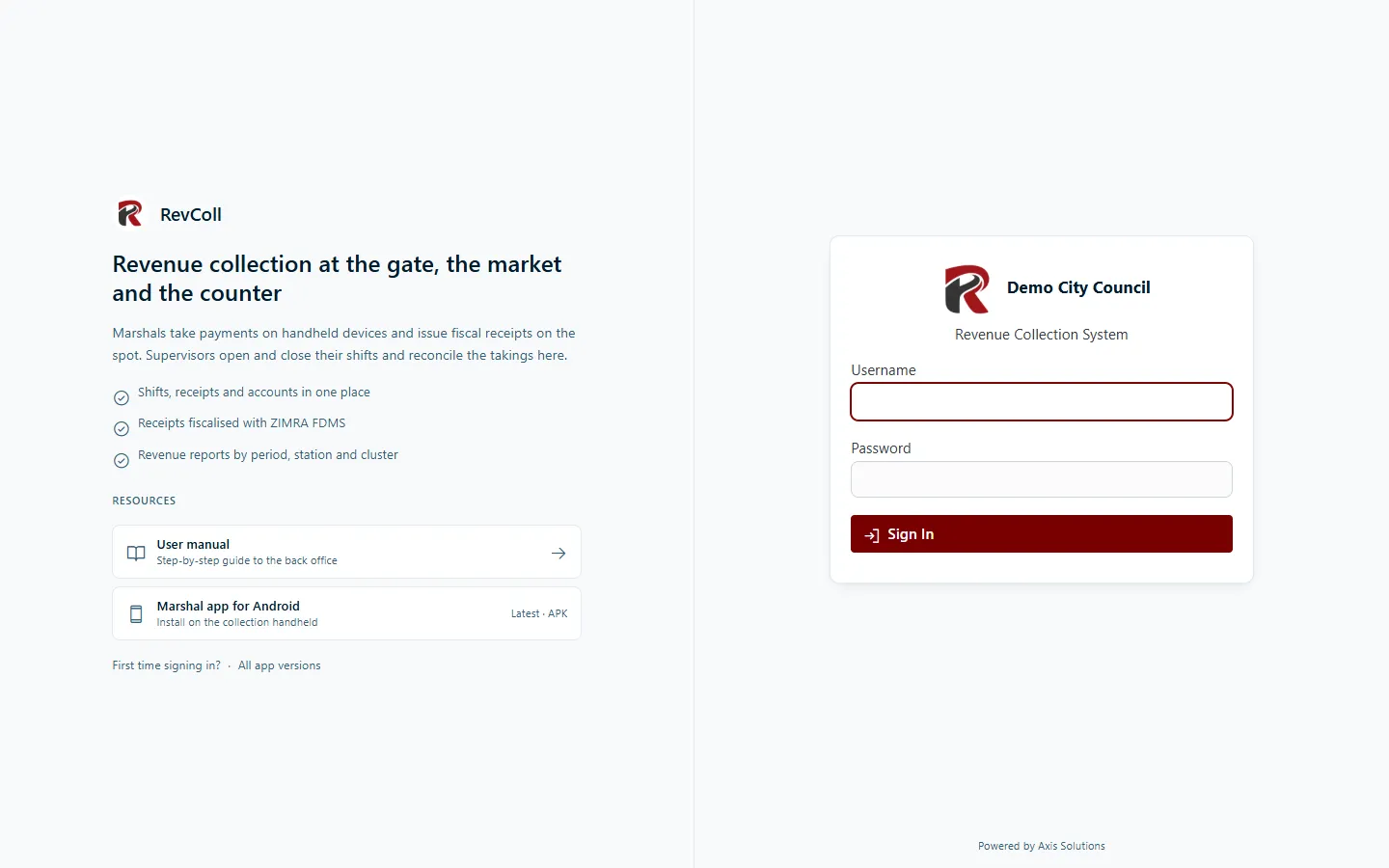
Sign in
Section titled “Sign in”- Open your council’s RevColl address. The sign-in page shows your council’s name.
- Enter your Username and Password.
- Select Sign In. You land on the dashboard.
If the details are wrong, RevColl says so above the form. Usernames are not case-sensitive; passwords are.
Beside the form (below it on a phone) the sign-in page links to this manual and to the Marshal app for Android. Open that link on a handheld to download the latest app, or choose All app versions for older builds and the per-device downloads.
Your first sign-in
Section titled “Your first sign-in”When an administrator creates your account, or resets your password, they give you a one-time setup code, for example K7QM-3XPA.
- Enter your Username, and type the setup code in Password. Capitals and the dash don’t matter.
- Select Sign In. RevColl asks you to create your password (see below).
The code works once and expires after 72 hours. If it has expired or been lost, ask the administrator to reset your password: that gives you a new code.
Choose a new password
Section titled “Choose a new password”RevColl asks you to choose a new password, before you can continue, when:
- you’ve just signed in with a setup code;
- your password is more than 90 days old.
You can also change it at any time from the user menu (your username, top right) → Password.
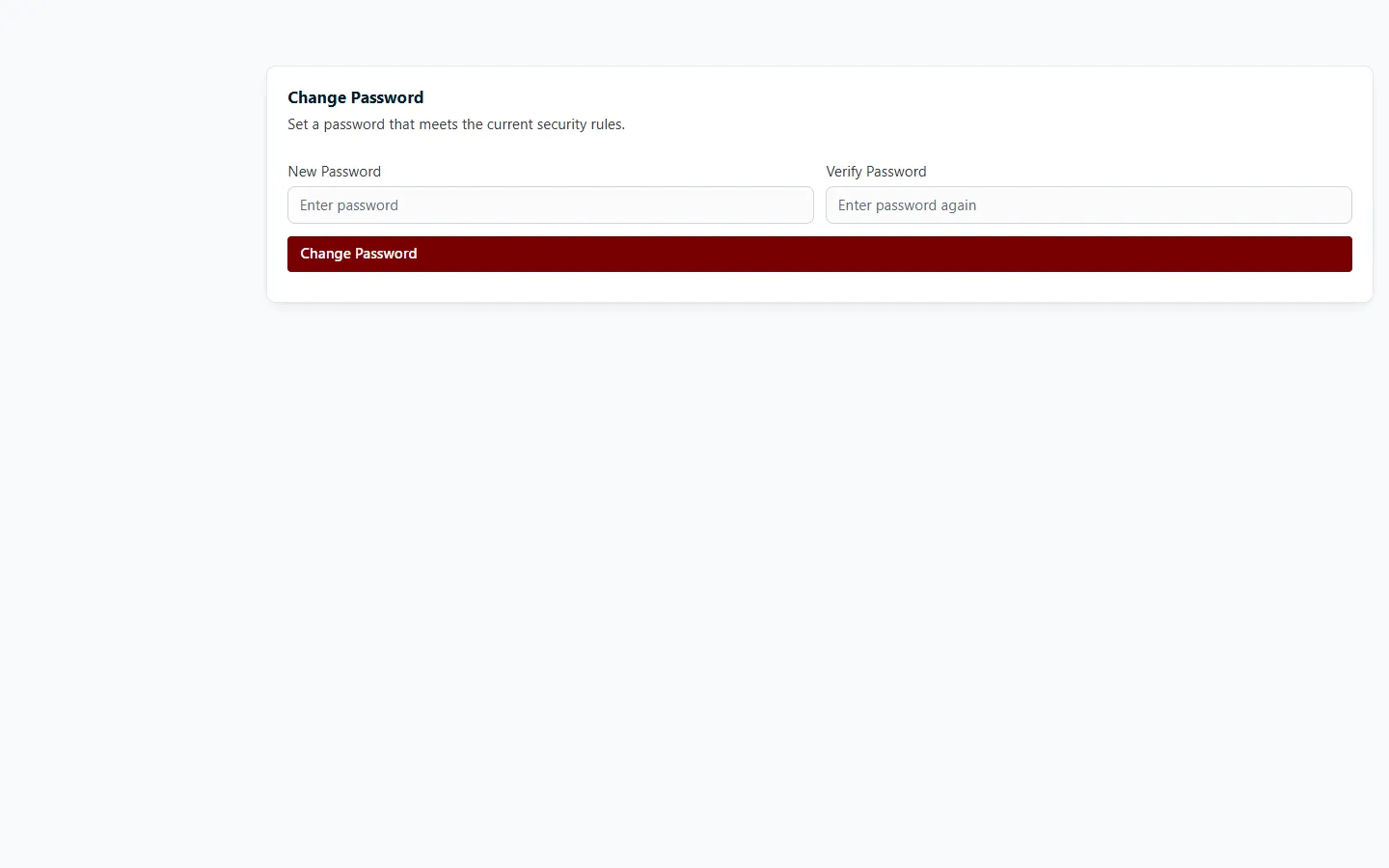
A password must:
- be 9 to 16 characters long, with no spaces;
- contain at least one uppercase letter, one lowercase letter, one digit and one special character (for example
!,#or@).
Type it in both New Password and Verify Password, then select Change Password.
Sign out
Section titled “Sign out”Open the user menu (top right) and select Sign Out. On a shared computer, always sign out when you finish.
RevColl user manual · build 19463 · Axis Solutions · Back to RevColl