
Finding your way
- Administrator
- Supervisor
- Auditor
Every RevColl screen has the same frame: a red bar along the top, a menu down the left, and the screen itself in the middle.
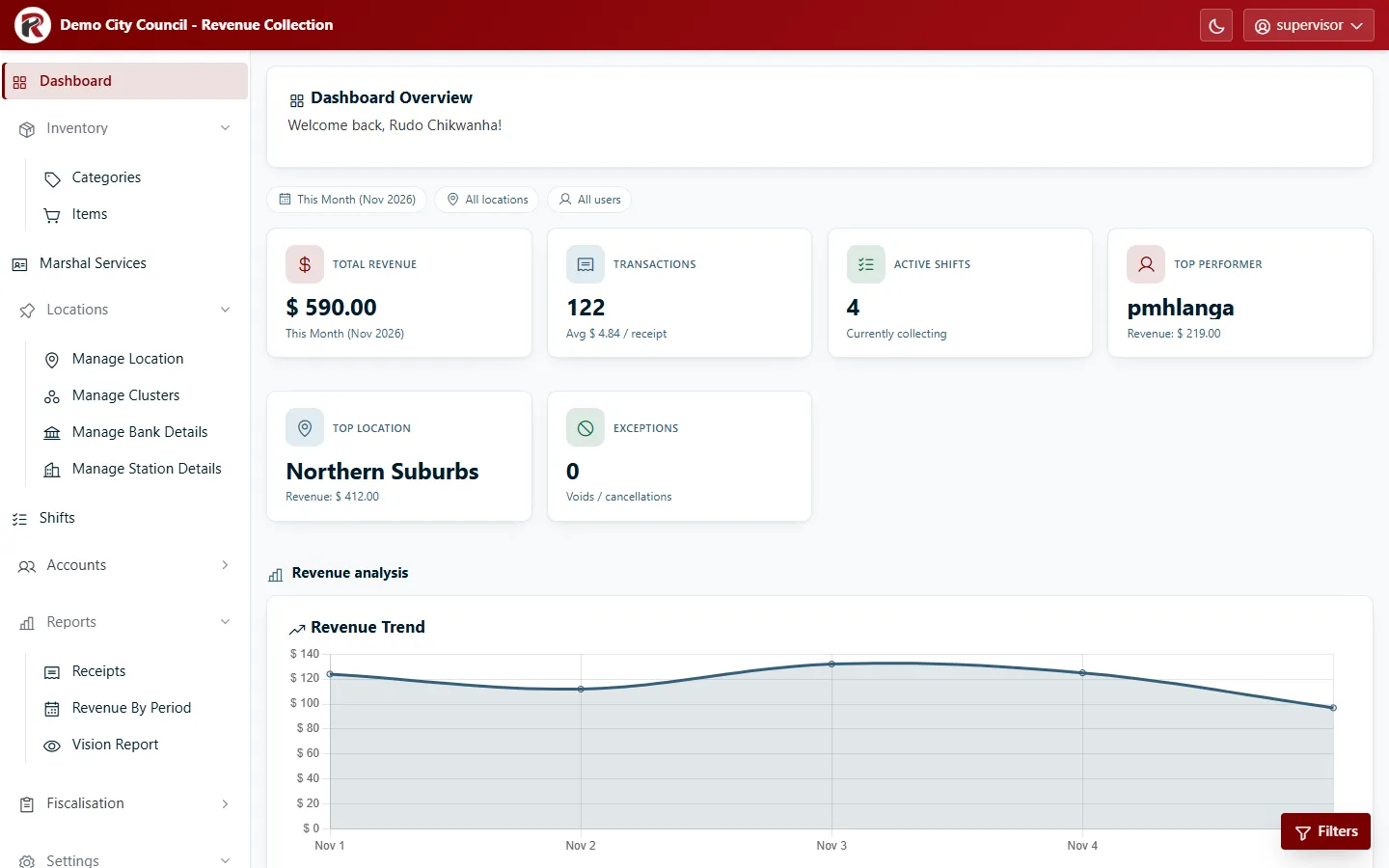
The side menu
Section titled “The side menu”The menu lists only what your role can open, so two people may see different menus. See Roles and access for who sees what.
- Groups such as Inventory, Locations and Reports open and close when you select their name.
- On a narrow screen the menu folds away: select the ☰ button at the top left to open it.
- User manual, at the bottom, opens this manual in a new tab.
Some items appear only when your council uses that feature, for example Manage Clusters or Vision Report. An administrator turns these on in System Settings.
The user menu
Section titled “The user menu”Select your username at the top right.
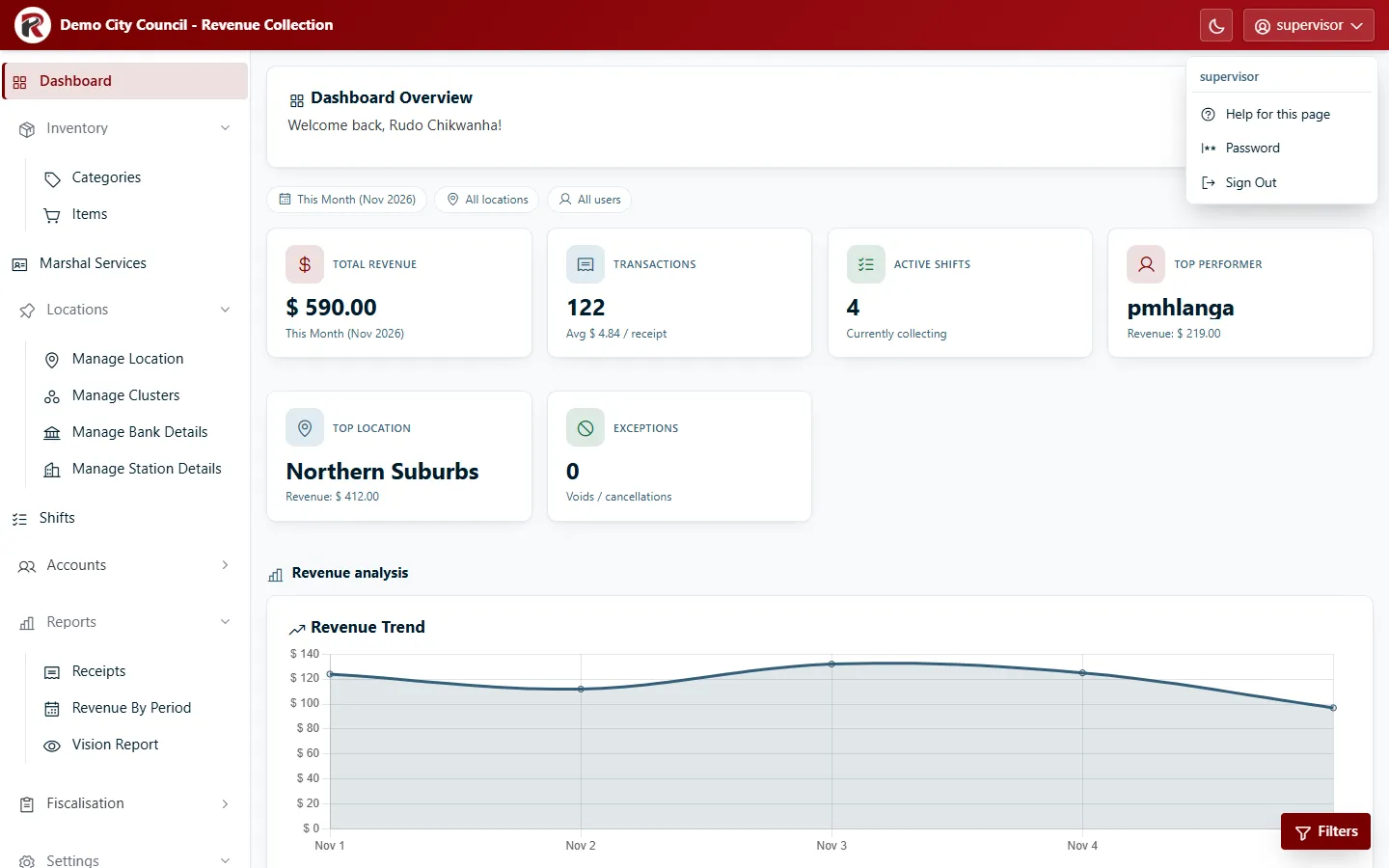
- Help for this page opens this manual at the section for the screen you’re on.
- Password changes your password. See Signing in.
- Sign Out ends your session.
The moon button beside it switches between light and dark mode. RevColl remembers your choice on that computer.
Tables
Section titled “Tables”Most screens are a searchable table.
- Search above the table filters as you type.
- Select a column heading to sort by it; select it again to reverse the order.
- Show … per page and the page numbers under the table move through long lists.
Detail drawers
Section titled “Detail drawers”Select any row to open its details drawer on the right. It shows the full record and the actions for it, for example Edit, View Receipts or Print.
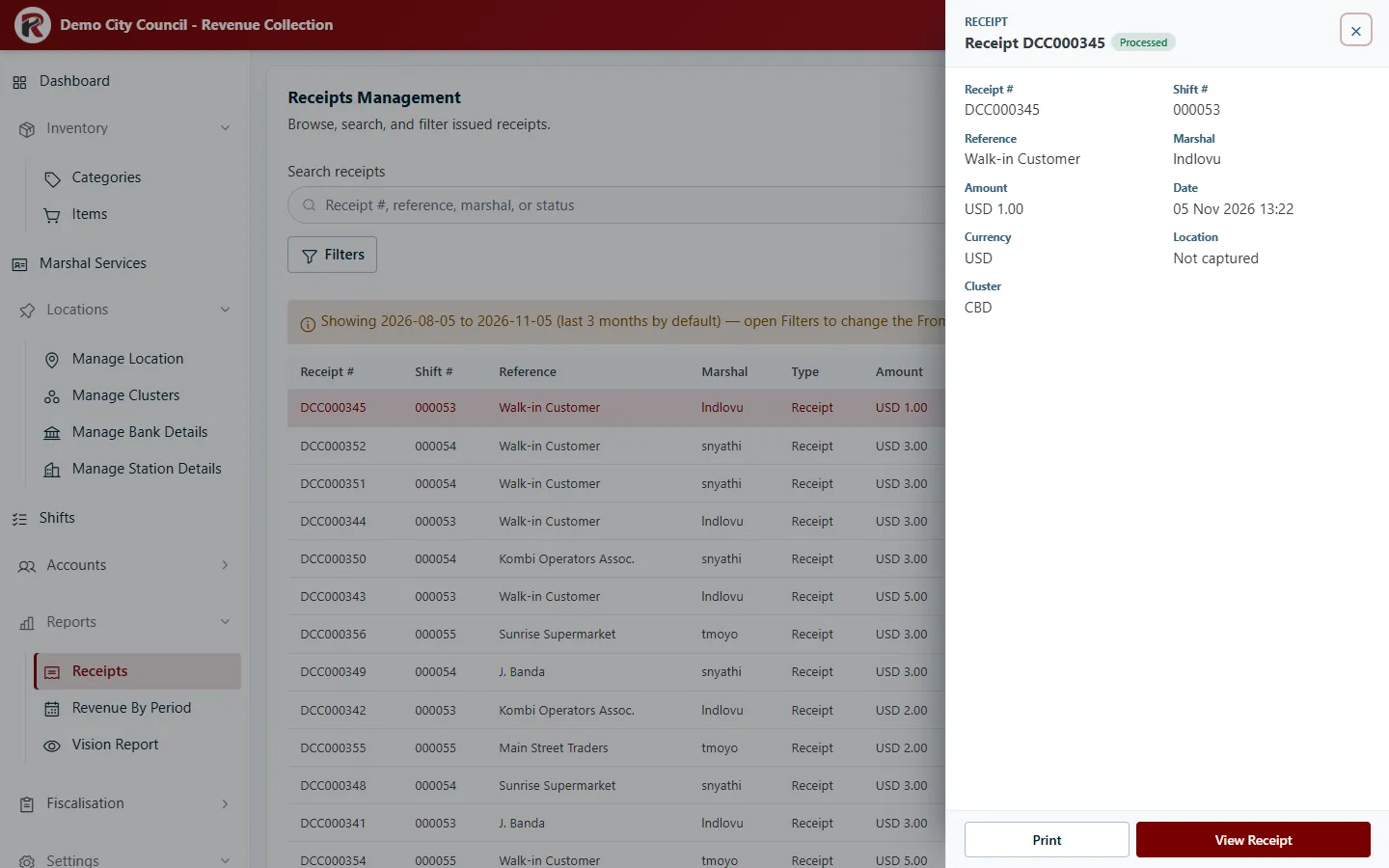
The two main actions are buttons at the bottom of the drawer. Any others, including Delete, are under the ⋯ button. Delete always asks you to confirm. Close the drawer with × or the Esc key.
Filters
Section titled “Filters”Screens with more ways to narrow the list have a Filters button. It opens a panel where you choose, for example, a date range, marshal or cluster.
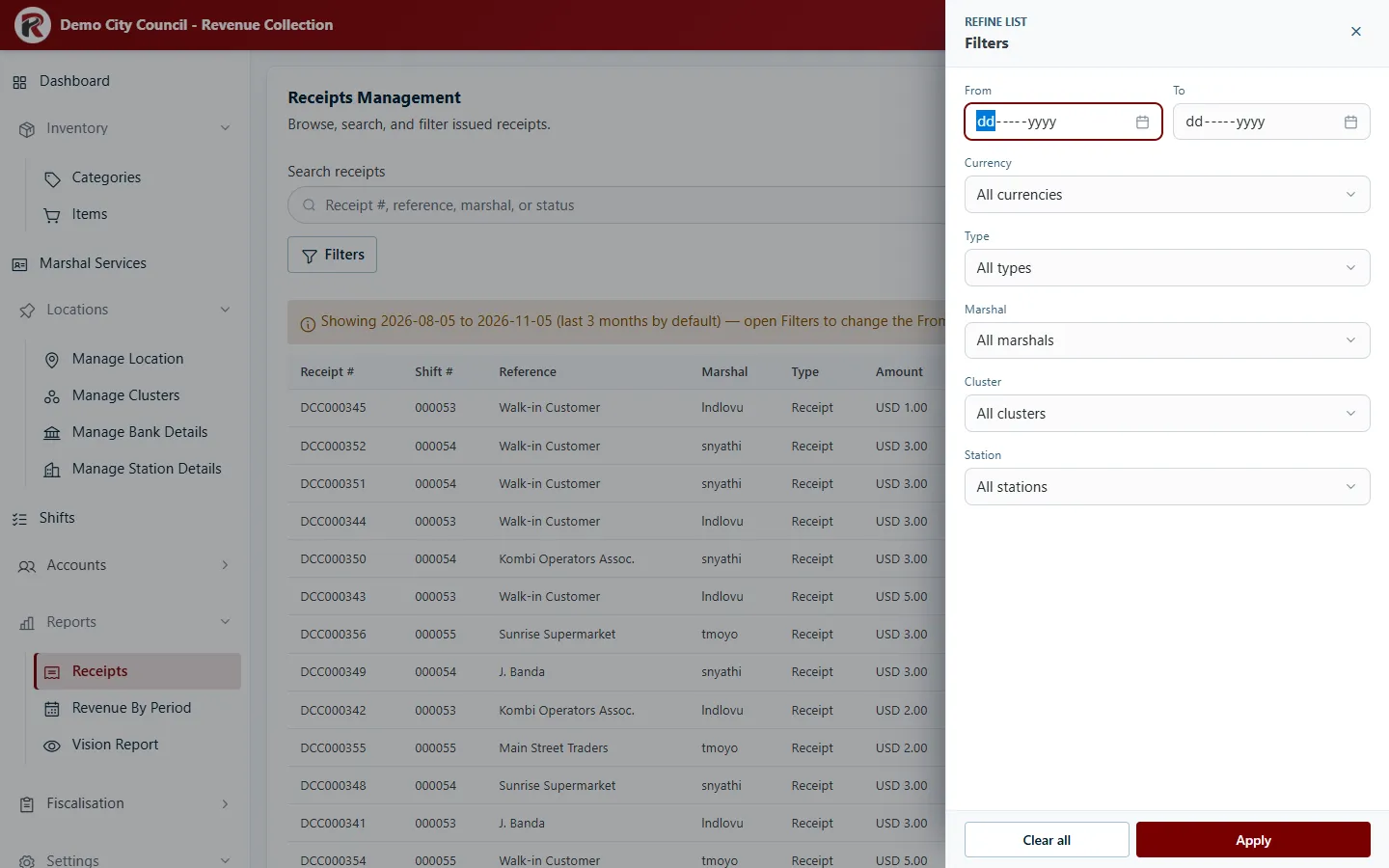
Select Apply to use them. The active filters show as chips above the table. Remove one with its ×, or select Clear all.
Exports
Section titled “Exports”Export (or More) saves the current list, with your search and filters applied, as CSV, Excel or PDF / Print.
RevColl user manual · build 19463 · Axis Solutions · Back to RevColl